
Published · January 2026 · By VoiceOver Maker Team
Natural-sounding AI voiceovers keep YouTube viewers engaged without the cost of a recording studio. Leading tools like Murf AI and ElevenLabs emphasize realistic AI voices and text to speech for video—the same goal: turn scripts into lifelike speech that holds attention. With a solid AI voice generator and export presets for YouTube, you can ship intros, explainers, and tutorials faster. Here’s how to get the best results in 2026.
Choose an AI voice generator that sounds natural
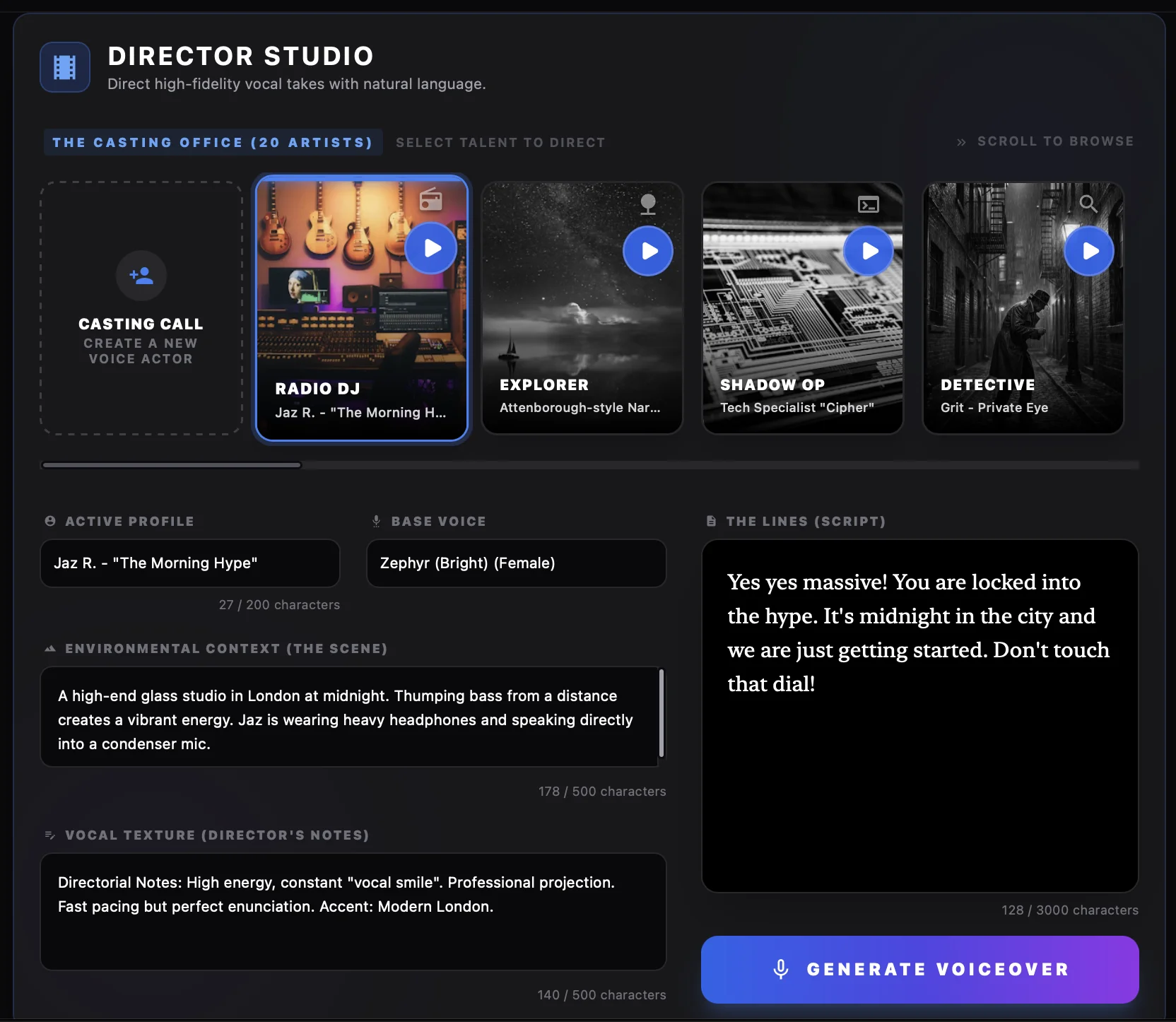
Not all text to speech online tools sound the same. Look for an AI voiceover generator that offers natural-sounding or realistic AI voices, with control over speed, pitch, and tone. VoiceOver Maker includes 200+ voices in 45+ languages and Director Studio so you can direct the voice in plain language—e.g. “friendly and upbeat” or “calm and authoritative”—for intros, explainers, and tutorials.
Write for spoken delivery
Scripts written for reading often feel stiff when spoken. Short sentences, contractions, and a conversational flow help computer generated voice over sound more natural. Break long paragraphs into shorter blocks and add optional pauses where you’d take a breath. In VoiceOver Maker you can adjust pacing and emphasis so the voice over maker free output matches your style.
Pick the right voice and tone
Match the voice to your channel and audience. For how-tos and explainers, a clear, neutral tone works well; for vlogs or ads, a warmer or more energetic AI voice over can fit better. Use one consistent voice for series so viewers recognize your brand. Try several free AI voice generator options before committing—VoiceOver Maker’s library lets you preview and compare quickly.
Export for YouTube

Export your narration as MP3 or WAV and drop it into your editor, or use built-in video export. VoiceOver Maker offers presets for YouTube (e.g. 1080p, 720p) so resolution and audio levels are ready for upload. If you edit in CapCut or iMovie, generate the text to speech for video in the app, then import the audio or video file and sync with your cuts. Consistent export settings help your channel sound professional across videos.
Keep your channel voice consistent
Viewers notice when narration style changes from video to video. Use one or two natural-sounding voices for a series and save them as presets. Document tone and pacing in a short style note so you (or your team) can replicate it. This “brand voice” approach is what tools like Murf and ElevenLabs support with voice libraries and presets—VoiceOver Maker’s Director Studio and saved talents do the same.

Quick checklist
- ✓ Script written for spoken delivery
- ✓ Natural-sounding voice selected and previewed
- ✓ Tone and pacing adjusted (Director Studio or Creative Studio)
- ✓ Export format and preset chosen for YouTube
Ready to try? Start with VoiceOver Maker for free, or read our free AI voice generator guide and blog for more tips.